
Connect your Meeting Room Schedule door display to Microsoft 365 rooms using Microsoft Graph API (Account Sign In)
How to connect to a Microsoft Exchange resource calendar (legacy versions up to build 12021) – Read here
With the recent update to our platform, Meeting Room Schedule now fully supports Microsoft Graph API connections for a smoother, more secure, and modern integration with Microsoft 365 calendars. This guide walks you through setting up your calendar type, choosing your Microsoft Account Sign-In authorization method, filtering resources, and pushing the calendar to your display device. This method allows you to connect Microsoft 365 using an existing Microsoft account. This is generally the best starting point for small and medium-sized businesses, organizations with a limited number of meeting rooms, or customers who want a straightforward setup without managing an enterprise application themselves. If the user is not allowed to give consent, and admin approval is required, then how to send an approval request is described here.
For other enterprise authorization scenarios, such as authentication with Microsoft Graph using a client secret, read here, or authentication with Microsoft Graph using a certificate, read here.
Connect the resource calendar to Meeting Room Schedule through admin website
- Sign in to the Meeting Room Schedule Admin website using the login credentials sent to your email address during the Meeting Room Schedule app registration process.
- Click Show More to view the advanced device settings.
- Select Calendar Type under Calendar Connection header, select Microsoft 365. The corresponding configuration fields will appear below.


- After selecting the authorization method, select your preferred account type for authorization:
Admin/Service:
-
-
- Select this option if you want to log in with an administrator or service account to authorize multiple resource calendars.
- Authorization only needs to be performed once and will then apply to all associated displays.
-
Resource/User:
-
-
- Select this option if you want to authorize a single resource calendar with the corresponding resource or user account.
- Login must be performed separately for each display.
-
- Then click Sign In and follow the on-screen instructions.

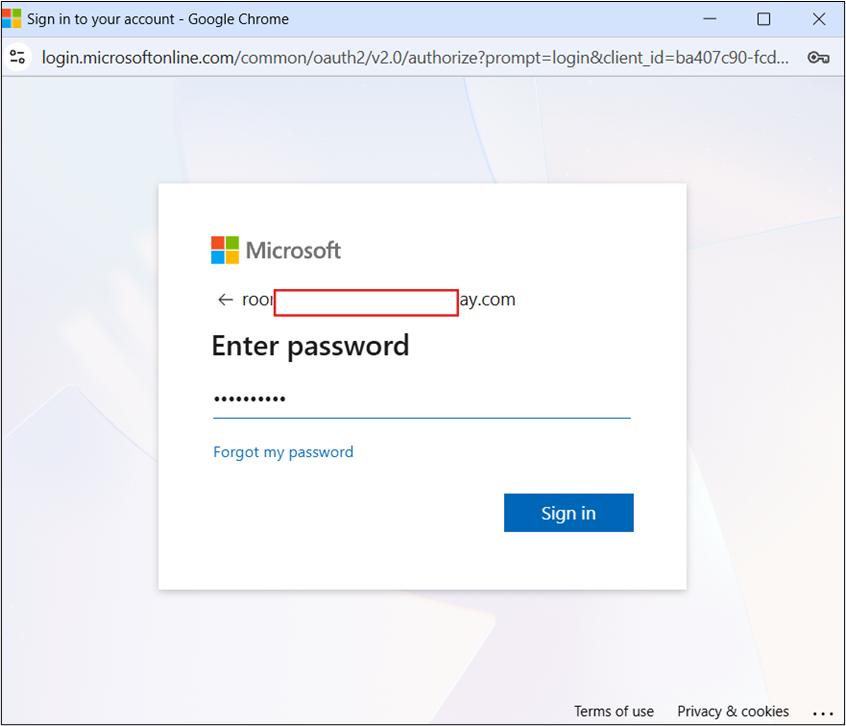
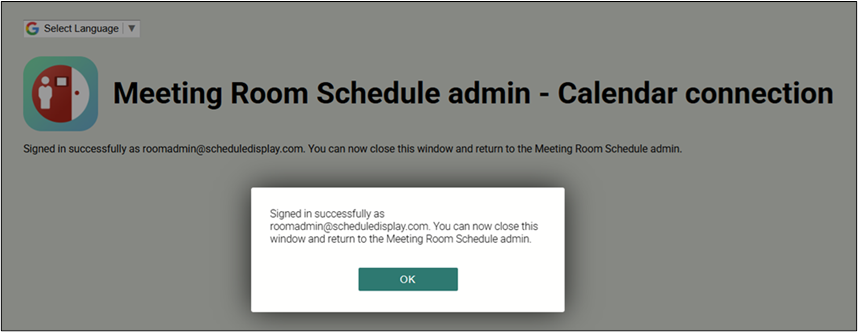
- After successful login, you will be redirected to a confirmation page. You can then close this window and return to the Meeting Room Schedule Admin website.
- Check the login status:
- The status should now show that the login was successful and the step is marked as complete.
- If changes are required, the connected account must be disconnected first.
- Click Disconnect to disconnect the Microsoft 365 account from the display. If you disconnect an admin account, all displays linked to that account will also be disconnected.
- Click Remove to force-remove all stored Microsoft 365 account and calendar details.

- Select Resource Calendar
- Select the desired resource calendar from the displayed list.
- For faster searching, you can enter 2–3 characters in the “Filter search results” field.
- After selection of the resource calendar, this step will automatically be marked as complete.


- Push calendar to the device
- Click “Push to Device” to transfer the updated settings to the selected display.
- After successful transfer, this step will also be automatically marked as complete.


- The Meeting Room Schedule app will automatically restart and then display the room calendar events.
Unlink or Change the Connected Resource Calendar
- Once a resource calendar has been successfully linked to a display, an Unlink button will appear.
- Click Unlink to disconnect the currently linked resource calendar from the display.
- Select the desired resource calendar from the Select calendar from the resource list dropdown.
- Click Push to the device to link the selected resource calendar to the display.

- To switch directly to another resource calendar, simply select the desired resource calendar from the Select calendar from the resource list dropdown and click Push to the device. The display will then be linked to the newly selected resource calendar.
Leave a Comment