
How to exclude Android devices used for Meeting Room Signage from a Microsoft Conditional Access policy?
Conditional Access policies in Microsoft Entra ID (formerly Azure AD) allow you to secure access to your organization’s resources by enforcing specific compliance and authentication rules. However, excluding dedicated Android devices is helpful for continuously running applications such as kiosk type, meeting room schedule, wall mounted displays, where continuous re-authentication would disrupt standard operations. This guide walks you through excluding Android devices from your Conditional Access policies, ensuring your dedicated Android hardware remains connected without compromising overall tenant security.
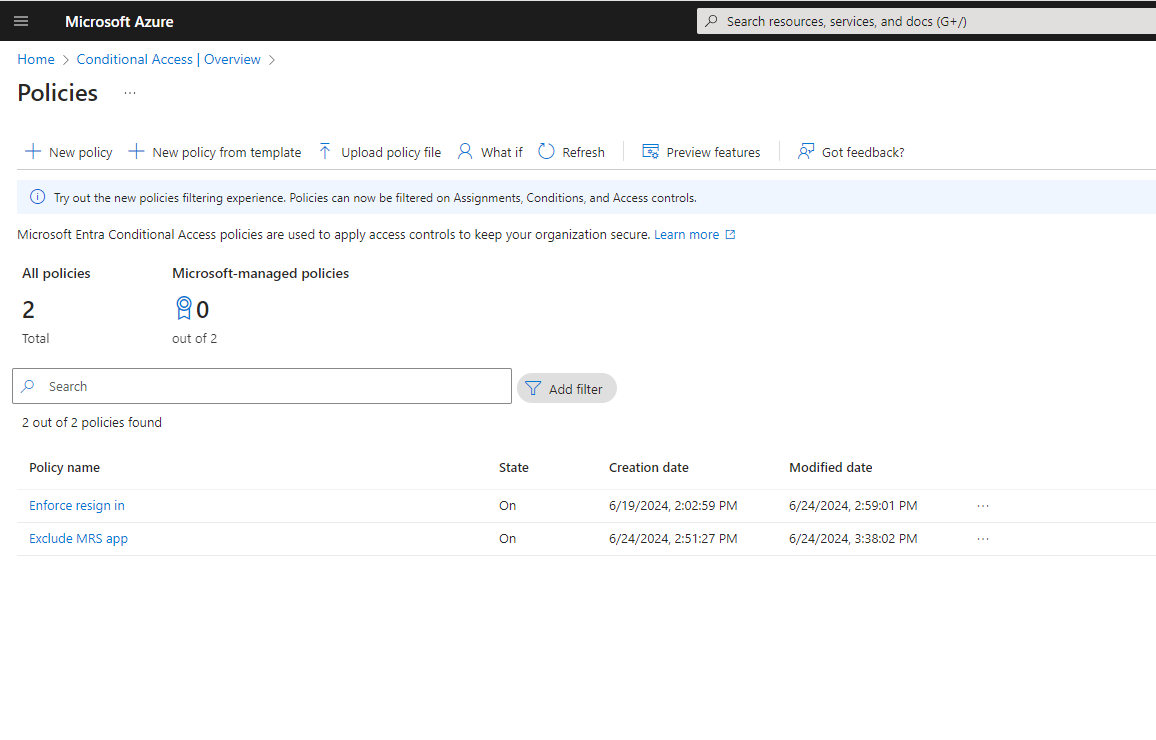
Step 1: Create a new policy in Microsoft Entra admin center
- Go to the Microsoft Entra admin center and navigate to Protection > Conditional Access > Policies.
- Click + New policy from the top menu bar.
- Enter a descriptive name for your policy (for example, Exclude meeting room signage displays).
Step 2: Exclude Android devices under conditions
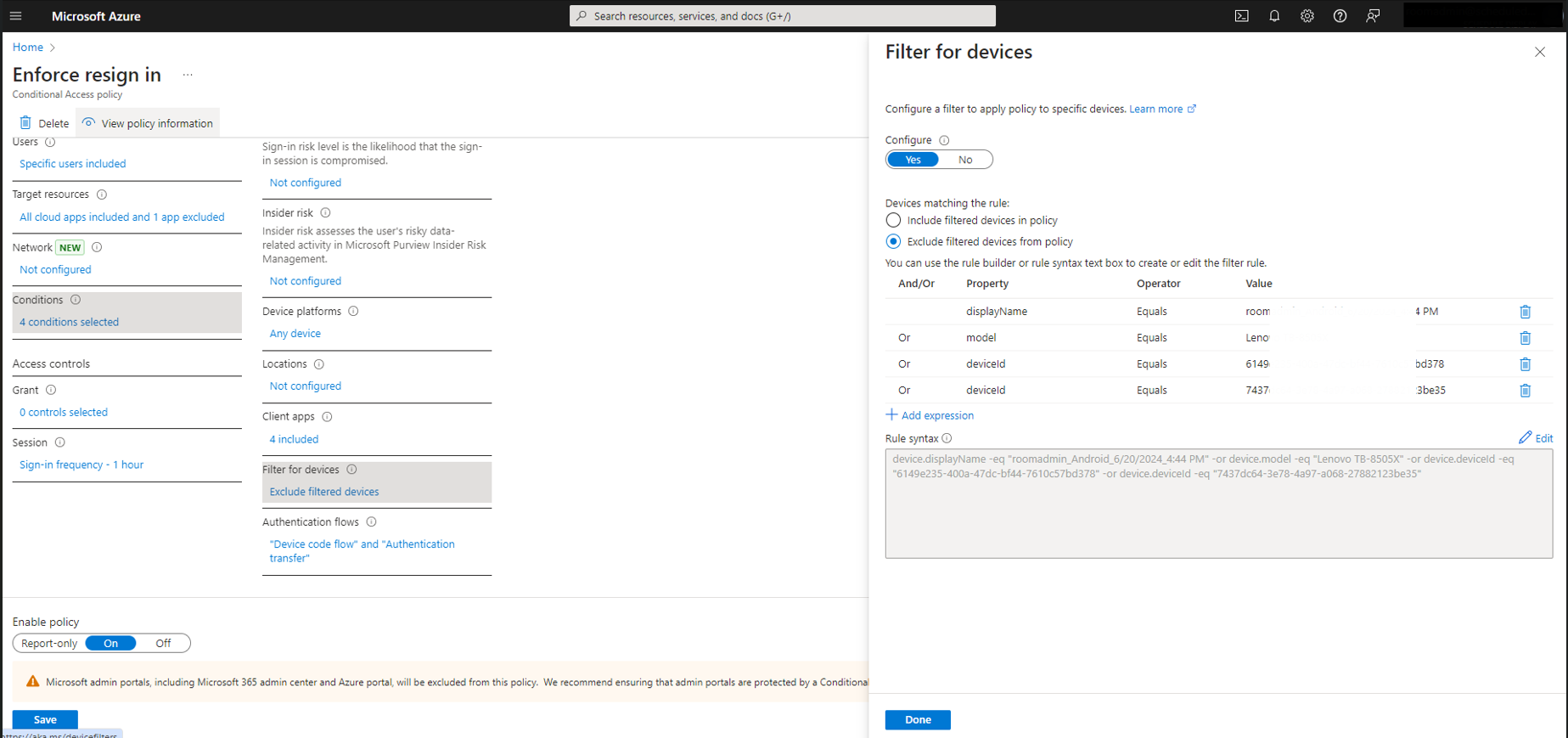
- Under Conditions, click Exclude filtered devices.
- Set Configure to Yes.
- Select Exclude filtered devices from policy.
- Set up your filter rule based on your device properties:
- Property: Select model, deviceOwnership, or displayName.
- Operator: Select Equals or StartsWith.
- Value: Enter the target value.
- Click Done and save your policy changes.
Step 3: Grant controls
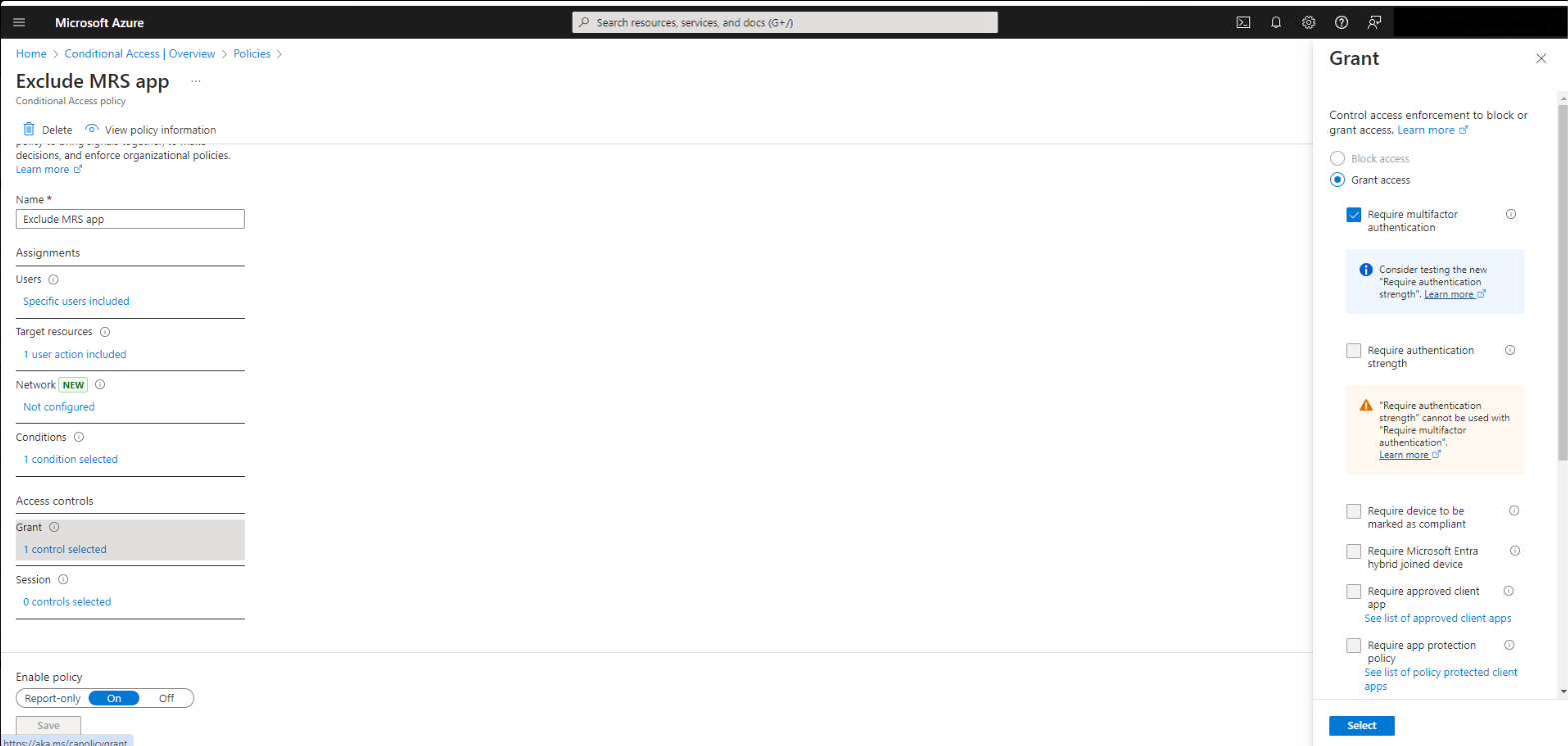
- Under Access controls, click Grant.
- Select your desired enforcement rule, such as Require multifactor authentication or Require device to be marked as compliant.
Step 4: Enable policy
- At the bottom under Enable policy:
- Set it to Report-only first to test the impact without disrupting users.
- Click Save to save the policy.
Leave a Comment