
How to manually adjust screen size and layout settings
Our Android application is engineered to deliver an optimal visual experience across a diverse range of hardware, from compact handheld devices to large-scale, dedicated meeting room tablets. To streamline deployment, the application features an automated detection system designed to analyze your hardware’s display metrics and instantly apply the most appropriate layout configuration.
However, given the vast and diverse ecosystem of Android hardware, including specialized commercial displays and custom manufacturer configurations, automatic screen detection may occasionally fail to identify a device’s physical dimensions accurately.
When this discrepancy occurs, a large tablet or enterprise display may inadvertently default to a layout optimized for a much smaller screen. To resolve this, the application includes a manual override feature, allowing administrators to permanently assign the correct layout framework for their specific hardware.
Step-by-Step instructions to manually set layout size
If your display is not rendering correctly, you can manually force the application to utilize the intended layout configuration by following these steps:
-
Navigate to the application Settings.
-
Select Style settings.
-
Find the Screen configuration section and locate the Size option.
-
Open the dropdown menu to select the dimensions that correspond to your physical hardware.
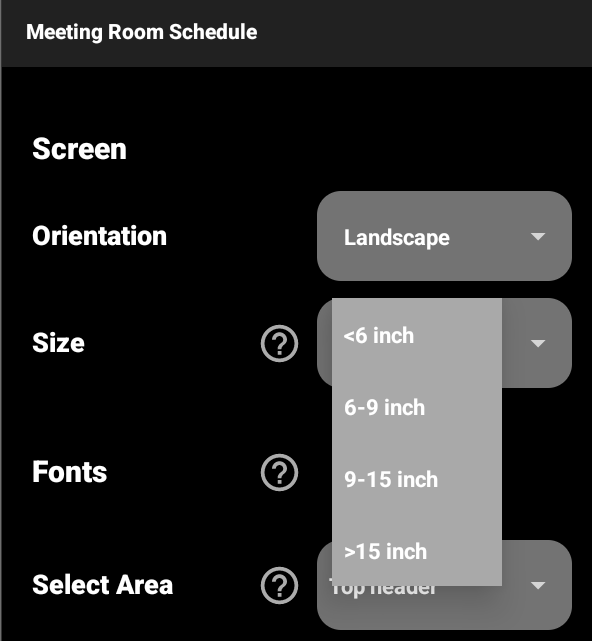
Selecting the correct layout configuration
As illustrated in the above image, the application provides four distinct layout brackets tailored to different display classes:
-
< 6 inch: Optimized for standard smartphones and compact mobile devices.
-
6-9 inch: Engineered for small tablets, phablets, and compact dedicated room schedulers.
-
9-15 inch: The standard configuration for mid-sized commercial tablets, enterprise meeting room displays, and standard tablets.
-
> 15 inch: Specifically scaled for large all-in-one interactive panels, digital signage boards, and television displays.
Applying and saving your changes
To ensure that the newly selected layout is correctly built and rendered by the system, you must commit the changes and restart the application environment:
-
After selecting the appropriate size from the dropdown menu, scroll to the bottom of the settings menu.
-
Click on Save & Exit.
-
Restart the application to allow the new layout parameters to take full effect.
Once the application reboots, the grid architecture, font scaling, and asset dimensions will be perfectly calibrated to your display. If you continue to experience scaling irregularities after applying these manual adjustments, please contact our technical support team for further assistance.
Leave a Comment