
Register an application in Microsoft Entra ID
In some business environments, direct connection to the Microsoft 365 resource calendar is not allowed. This could be due to enterprise IT policy or other restrictions. In this scenario, the Microsoft azure admin can register an application in Microsoft Entra ID and use its application ID. Registering your application in Microsoft Entra establishes a trust relationship between your app and the Microsoft identity platform. For more details, refer to Microsoft’s step-by-step documentation here.
Follow these steps to create the app registration. For more details, refer to Microsoft’s step-by-step documentation here.
- Sign in to the Microsoft Entra admin center as at least an Admin.
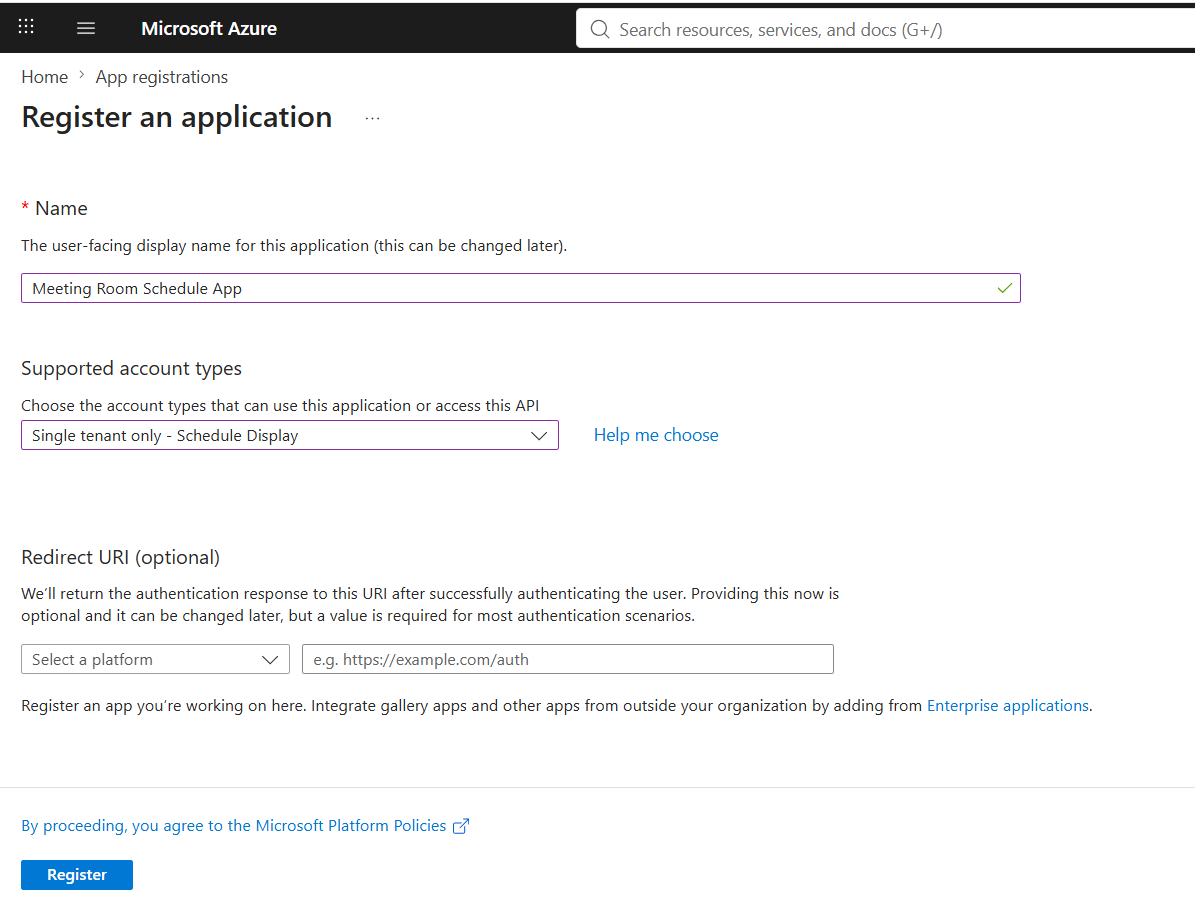
- Browse to Entra ID > App registrations and select New registration.
- Enter a meaningful Name for your app; for example, Meeting Room Schedule App.
- Under Supported account types, open the drop-down and select who can use the application. We recommend Single tenant only – <your tenant> for most applications. If you have multiple tenants, then select Multiple Entra ID tenants.
- Select Register to complete the app registration.
Add a redirect URI
A redirect URI is where the Microsoft identity platform sends security tokens after authentication. Redirect URIs are configured on the Authentication page in the Microsoft Entra admin center. For Web and Single-page applications, you specify a redirect URI manually. For more details, refer to Microsoft’s step-by-step documentation here.
Follow these steps to configure settings based on your target platform or device:
- In the Microsoft Entra admin center, in App registrations, select your application.
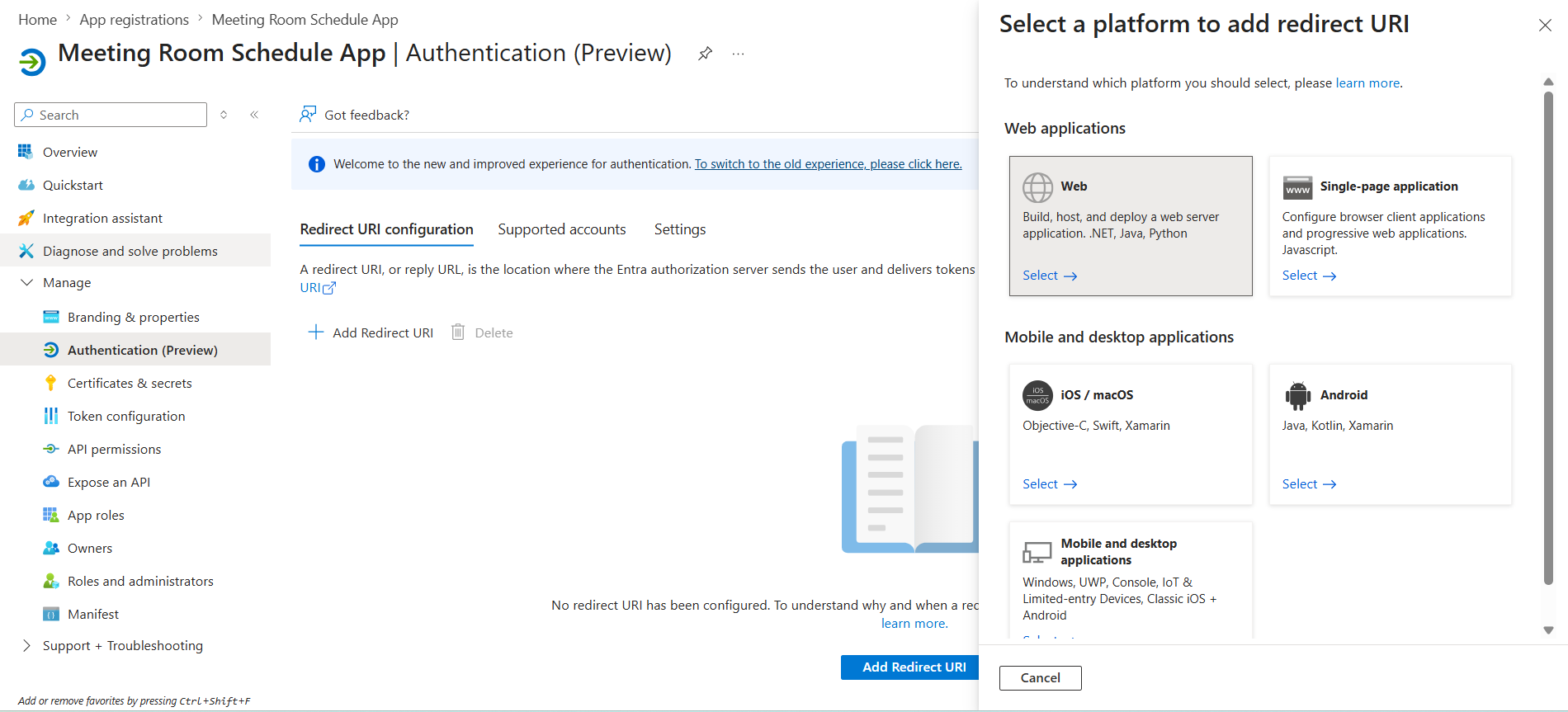
- Under Manage, select Authentication.
- On the Redirect URI configuration tab, select Add Redirect URI and then select Web.
-
-
- Purpose of the Redirect URI: Microsoft Entra ID uses this dedicated URL to safely transmit authentication responses and access tokens back to our application after a user signs in.
- Verified Ownership: The domain is registered under our organization’s account on Google Cloud Infrastructure. Deployment rights are strictly restricted to our development team, ensuring that no unauthorized party can modify or deploy code to this address.
- Data Protection & Compliance: The endpoint operates exclusively over HTTPS with mandatory TLS encryption. This guarantees that all authentication tokens remain encrypted in transit and satisfies Microsoft’s required OAuth 2.0 transport security standards.
- OAuth 2.0 Protocol & Token Isolation: Microsoft Entra ID enforces exact URL matching for Redirect URIs. Authentication responses and tokens are transmitted solely to the explicitly configured endpoint. Because Entra ID will only send credentials to registered URIs within your tenant, tokens cannot be intercepted or redirected to external targets.
- Transport Layer Security (TLS/HTTPS): All traffic to and from the app is secured via HTTPS using TLS encryption with managed 2048-bit RSA keys. HTTP Strict Transport Security (HSTS) is enforced automatically to prevent protocol downgrade attacks and ensure connections remain permanently encrypted.
- Enterprise Google Cloud Infrastructure: The web application is deployed on Google Cloud Platform. Production deployments require authenticated deployment keys managed strictly by us. The platform utilizes Google’s global Content Delivery Network (CDN) edge infrastructure, featuring integrated DDoS protection, continuous service monitoring, and high availability.
- Certified Compliance Standards:
-
Information Security Management: ISO/IEC 27001
Cloud Security & PII Protection: ISO/IEC 27017 & ISO/IEC 27018
Service Organization Controls: SOC 1, SOC 2 (Type II), and SOC 3
Payment & Infrastructure Security: PCI DSS Level 1 Compliant Infrastructure
Privacy & Data Governance: GDPR & CCPA Compliance, EU-U.S. Data Privacy Framework (DPF)
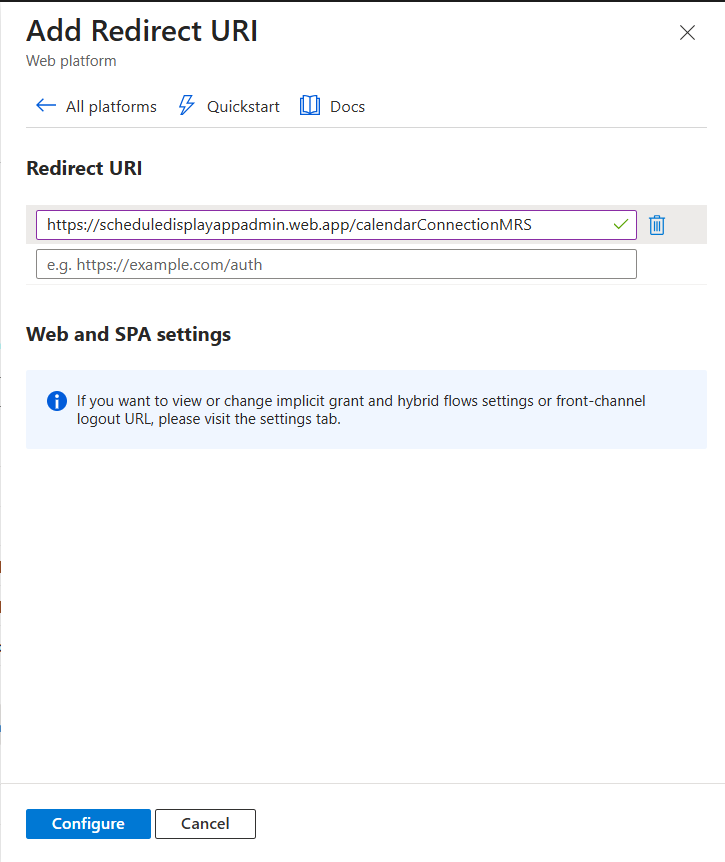
- Add the following URI and select Configure to complete the platform configuration.
https://scheduledisplayappadmin.web.app/calendarConnectionMRS
Add and manage application credentials in Microsoft Entra ID
When building confidential client applications, managing credentials effectively is critical. This article explains how to add client certificates, federated identity credentials, or client secrets to your app registration in Microsoft Entra. These credentials enable your application to authenticate itself securely and access web APIs without user interaction. For more details, refer to Microsoft’s step-by-step documentation here.
- In the Microsoft Entra admin center, in App registrations, select your application.
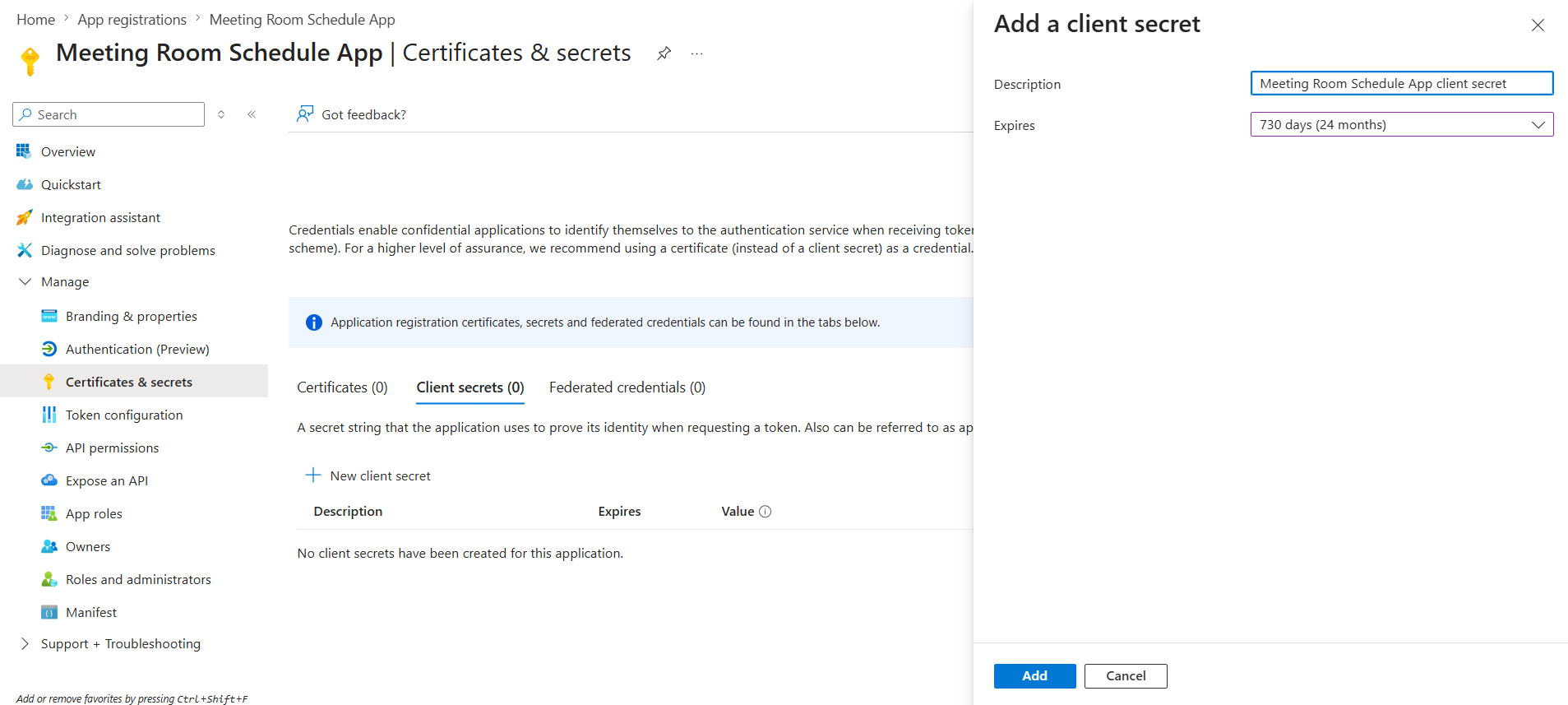
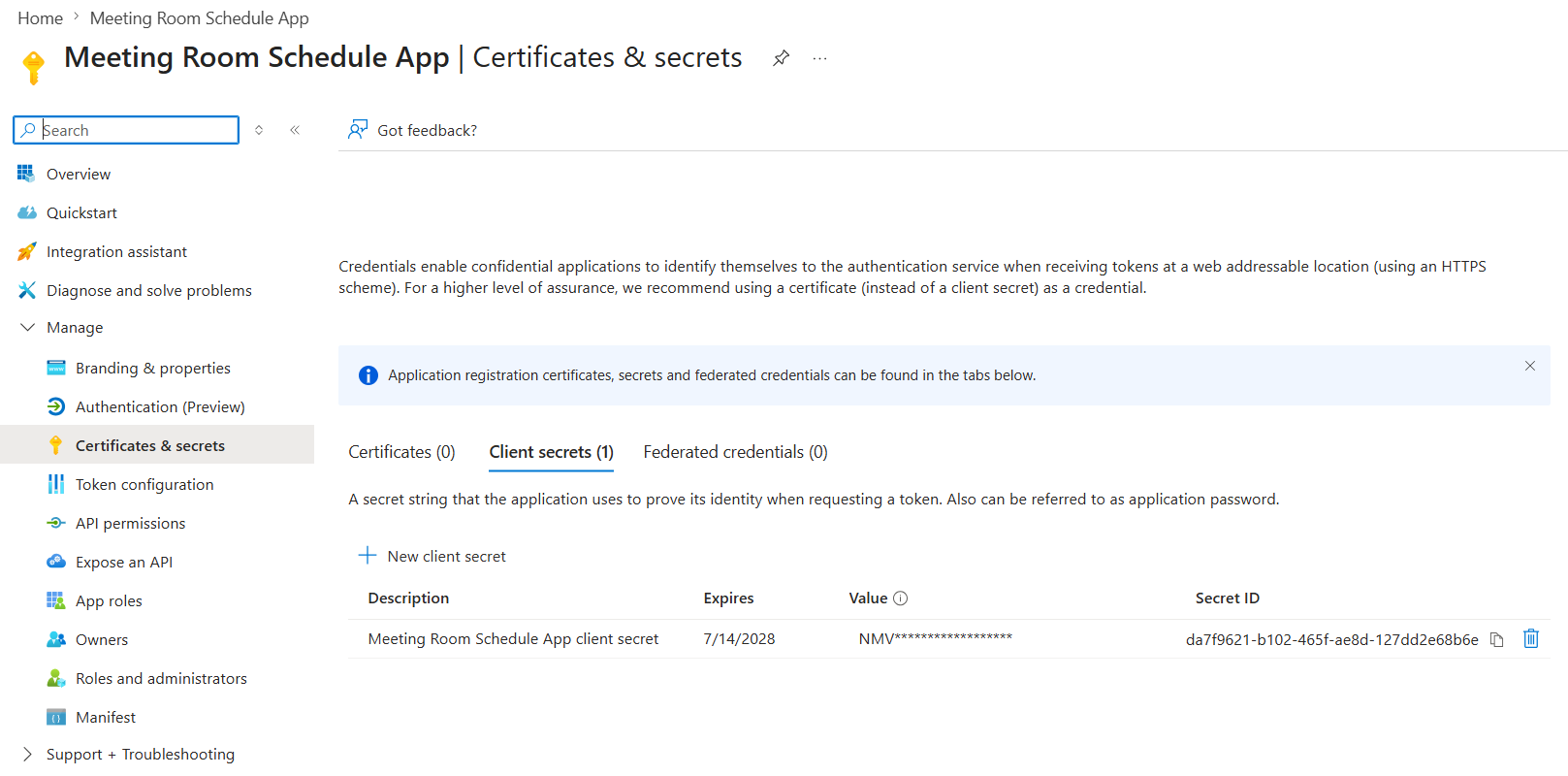
- Select Certificates & secrets > Client secrets > New client secret.
- Add a description for your client secret.
- Select an expiration for the secret or specify a custom lifetime.
- Client secret lifetime is limited to two years (24 months) or less. You can’t specify a custom lifetime longer than 24 months.
- Microsoft recommends that you set an expiration value of less than 12 months.
- Select Add.
- Record the client secret Value for use in your client application code. This secret value is never displayed again after you leave this page.
Add permissions to access Microsoft Graph
Configure delegated permission to Microsoft Graph to enable your client application to perform operations on behalf of the logged-in user. For more details, refer to Microsoft’s step-by-step documentation here.
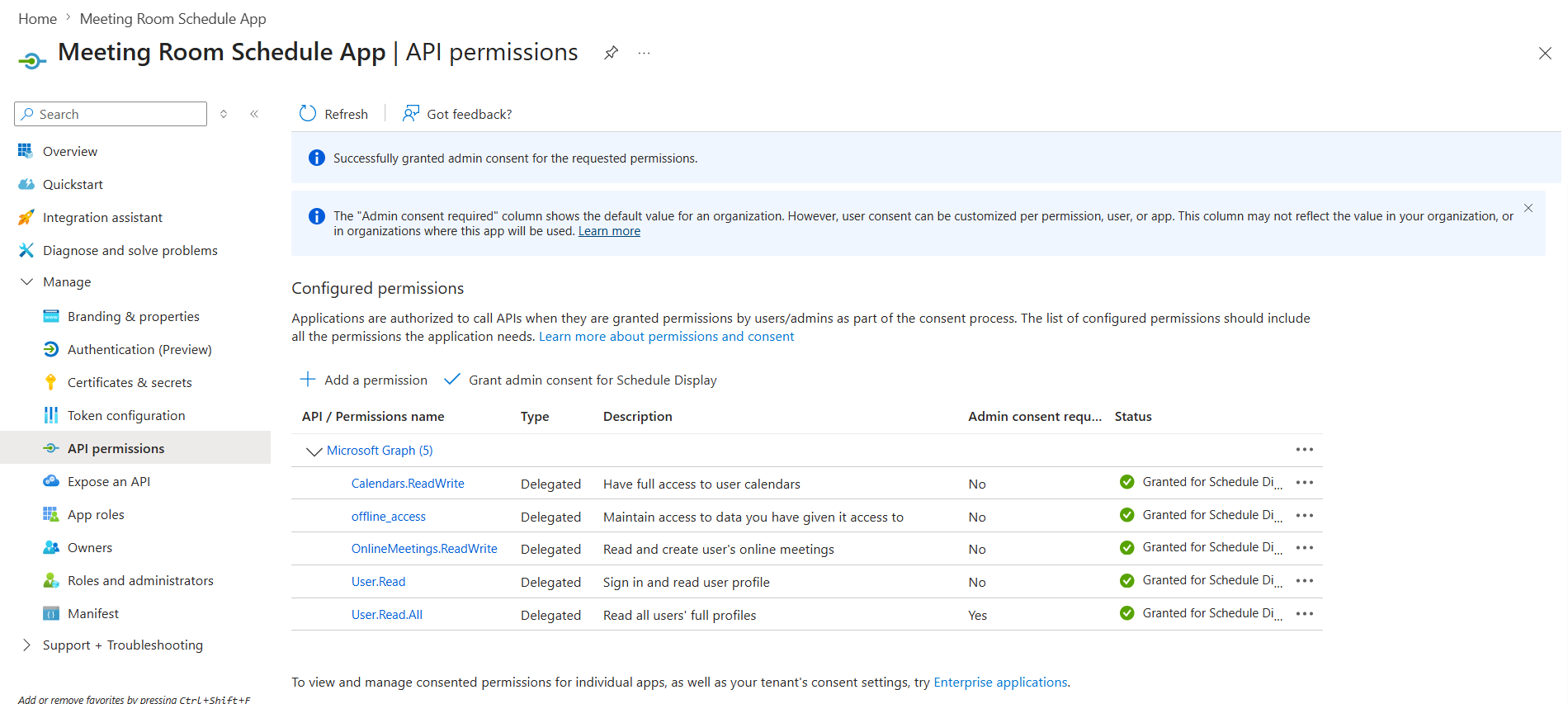
- From the Overview page of your client application, select API permissions > Add a permission > Microsoft Graph.
- Select Delegated permissions. Microsoft Graph exposes many permissions, with the most commonly used shown at the top of the list.
- Add the following permissions and select Add permissions to complete the process.
- ReadWrite
- offline_access
- ReadWrite
- Read
- Read.All
- Select Grant admin consent for your tenant. For more details read here.
Leave a Comment