
Choosing the correct registration email for Meeting Room Schedule
To unlock the full functionality of Meeting room Schedule, such as configuring your custom calendars, activating software licenses, and managing device networks, you must first complete the application registration process.
A common point of confusion during initial deployment is determining which email address to enter under the Registration details. While it may be tempting to use the specific email address associated with a resource mailbox or meeting room, doing so will cause significant administrative issues down the line.
To ensure uninterrupted access to your management tools, it is crucial to use a personal corporate administrator, department, or company email address rather than a room mailbox.
The difference between a registration email and a room email
It helps to understand how our system handles these two distinct types of email addresses:
-
Registration Email (Administrator Account): This is your master account identifier. It is the administrative contact used to manage your licenses, receive system-wide updates, and authorize remote changes.
-
Room/Resource Email (Calendar Source): This is the dedicated mailbox assigned by Microsoft 365 or Google Workspace to a physical meeting room (e.g. resource@company.com). Its sole purpose is to sync calendar events and display schedules.
Why you should never use a room email for registration
The registration email address acts as the main gateway for secure administrative communications. If you register the application using a room or resource email address, you will face several technical hurdles:
-
Inaccessible system communications: Automated resource mailboxes are typically not monitored by IT staff, or they are configured to auto-decline or delete external inbound messages.
-
Account verification failures: You will be unable to receive the initial registration verification link required to activate your full feature set.
-
Kiosk password reset: Critical administrative actions, such as resetting your kiosk security PIN or device passwords, will be sent to the unmonitored room mailbox, locking you out of the display configuration.
-
Remote administration restrictions: Access to the remote web management portal relies entirely on your registration identity.
Best practices for choosing your registration email
For a smooth, secure deployment, we highly recommend registering the application using one of the following formats:
-
A generic corporate IT: (e.g. info@company.com or it@yourcompany.com). Ideal for mid-to-large enterprises, as it ensures multiple team members can access administrative controls and receive critical alerts if an individual leaves the company.
- Your individual corporate email: (e.g. name@company.com). Best for single-site setups or small businesses where one person manages the display infrastructure.
Where to find registration settings
You can view or update your registration configuration directly from the device interface by following these steps:
-
Launch the application and open the Settings menu.
-
Navigate to Admin Settings.
-
Locate the form under Registration details.
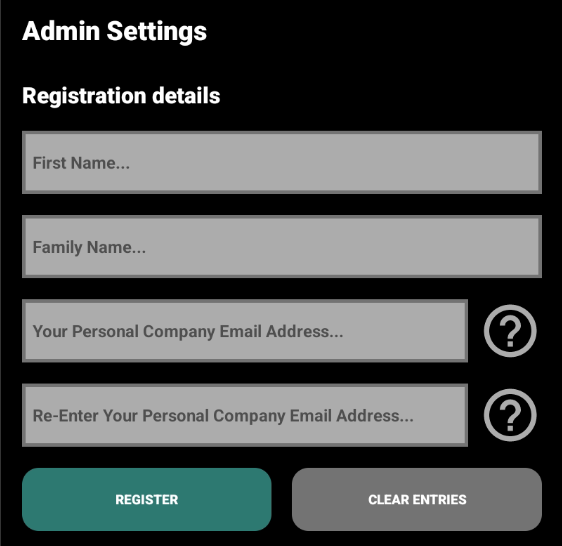
Once you have filled out your First Name, Family Name, and your corporate email addresses, click the green Register button to initiate the setup.
Leave a Comment